Showing posts with label Editor. Show all posts

Wednesday, February 21, 2018

Download Application Key Tweak - Easy to customize your keyboard


Gambar terkait

Hasil gambar untuk key tweak logo

Download Application Key Tweak - Easy to customize your keyboard

This is my original story, one day I want to play a mmorpg game with my beloved laptop. But something happened, i cant press my ESC keyboard, but why?? IIt almost okay yesterday. So in my game ESC was very important thing, so i decide to stop play and fix this issue. I cant repair the hardware so i find a faster way, that is customize my keyboard keys.

And then with this software i change my ESC to HOME and HOME to ESC, and it works perfectly. haha.. so simple i think. Do you have some problem? Just use this simpleware.


These are some Features:

  • Simple interface
  • User friendly, don't need a special instruction
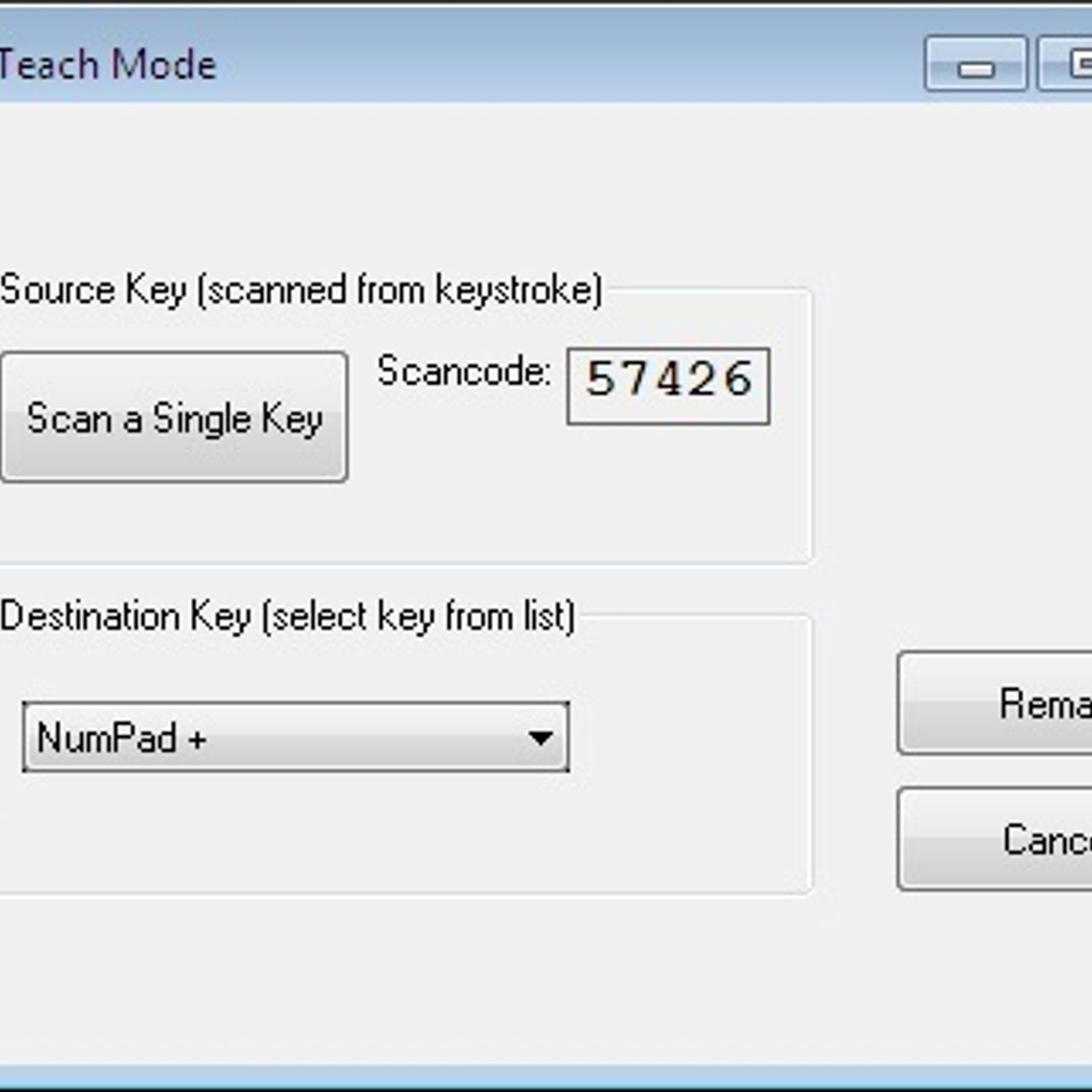
  • Can detecting a key by pressing it
  • Can manually select a key by finding it in drop down list
  • Enable / Disable annoying keys
  • Remove all remapping or set to default keyboard 
  • Display what exactly written in "Scancode Map"


Download Tweakware Full Version Free Here
Google Drive

Download Dev Cpp / Dev C++ 4.9.9.2 - Simple and fast C++ IDE

Hasil gambar untuk devcpp logo

Hasil gambar untuk devcpp

DevCpp is an IDE to create .cpp program language, same as other IDE this IDE has it own feature. Here is the feature.

Feature 
  • Tool Manager 
  • Print support 
  • Find and replace facilities 
  • Support GCC-based compilers 
  • Integrated debugging (using GDB) 
  • Support for multiple languages (localization) 
  • Class Browser 
  • Code Completion 
  • Package manager, for easy installation of add-on libraries 
  • CVS Support 
  • To-Do List 
  • CPU Window
  • Debug variable Browser 
  • Project Manager 
  • Customizable syntax highlighting editor 
  • Quickly create Windows, console, static libraries and DLLs 
  • Support of templates for creating your own project types 
  • Makefile creation 
  • Edit and compile Resource files 
Requirement
As the title DevCpp can be used better in a low end pc with spec:
  • 32 mb RAM
  • Windows 95 or higher
  • The executables compiled by Dev-C++ will need MSVCRT.DLL (comes with Windows 95 OSR 2 or higher).
This program is Freeware, you can be free to download, edit or modified. Unless other windows apps you need read the term of service carefully.

Now here is the download link of Dev C++ 4.9.9.2

Tuesday, February 20, 2018

Download Sublime text 3 For your windows 7/8/8.1/10 Free


Sublime text is a text editor for multy function. It can be used to just texting as usual or to write a progamming language. Sublime text compatible with C++, C#, Python, C, Ruby, html, php, CSS, Js, and other. This is pure text editor.

This is some of Sublime Text 3 features:

GOTO ANYTHING
Use Goto Anything to open files with only a few keystrokes, and instantly jump to symbols, lines or words.

Triggered with Ctrl+P, it is possible to:

Type part of a file name to open it.
Type @ to jump to symbols, # to search within the file, and : to go to a line number.
These shortcuts can be combined, so tp@rf may take you to a function read_file within a file text_parser.py. Similarly, tp:100 would take you to line 100 of the same file.

GOTO DEFINITION
Using information from syntax definitions, Sublime Text automatically generates a project-wide index of every class, method and function. This index powers Goto Definition, which is exposed in three different ways:

A popup is displayed when hovering over a symbol
Pressing F12 when the caret is on a symbol
The Goto Symbol in Project functionality
Symbol indexing can be customized on a per-syntax basis via configuration files, allowing users to tailor the feature to their needs.

MULTIPLE SELECTIONS
Make ten changes at the same time, not one change ten times. Multiple selections allow you to interactively change many lines at once, rename variables with ease, and manipulate files faster than ever.

Try pressing Ctrl+Shift+L to split the selection into lines and Ctrl+D to select the next occurrence of the selected word. To make multiple selections with the mouse, take a look at the Column Selection documentation.

COMMAND PALETTE
The Command Palette holds infrequently used functionality, like sorting, changing the syntax and changing the indentation settings. With just a few keystrokes, you can search for what you want, without ever having to navigate through the menus or remember obscure key bindings.

Show the Command Palette with Ctrl+Shift+P.

POWERFUL API AND PACKAGE ECOSYSTEM
Sublime Text has a powerful, Python API that allows plugins to augment built-in functionality.

Package Control can be installed via the command palette, providing simple access to thousands of packages built by the community.

CUSTOMIZE ANYTHING
Key bindings, menus, snippets, macros, completions and more - just about everything in Sublime Text is customizable with simple JSON files. This system gives you flexibility as settings can be specified on a per-file type and per-project basis.

SPLIT EDITING
Get the most out of your wide screen monitor with split editing support. Edit files side by side, or edit two locations in the one file. You can edit with as many rows and columns as you wish. Take advantage of multiple monitors by editing with multiple windows, and using multiple splits in each window.

Take a look at the View ▶ Layout menu for split editing options. To open multiple views into the one file, use the File ▶ New View into File menu item.

INSTANT PROJECT SWITCH
Projects in Sublime Text capture the full contents of the workspace, including modified and unsaved files. You can switch between projects in a manner similar to Goto Anything, and the switch is instant, with no save prompts - all your modifications will be restored next time the project is opened.

PERFORMANCE
Sublime Text is built from custom components, providing for unmatched responsiveness. From a powerful, custom cross-platform UI toolkit, to an unmatched syntax highlighting engine, Sublime Text sets the bar for performance.

CROSS PLATFORM
Sublime Text is available for Mac, Windows and Linux. One license is all you need to use Sublime Text on every computer you own, no matter what operating system it uses.

Sublime Text uses a custom UI toolkit, optimized for speed and beauty, while taking advantage of native functionality on each platform.

credit: souce

Dowload Sublime text 3 for Windows Free
GoogleDrive

Sunday, February 11, 2018

Paint Tool SAI Tutorial : Fanart serial Si Ocong (Webtoon)


Hello all... today I will make a post about design, oh not a design it will be more about drawing I think. So today we will use a popular drawing apps from Japan that named Paint tool SAI. As it name "Paint" so we will surely painting in the canvas, but it will not ruin your money to buy some ink because this is digital painting.

Now before you read the tutorial you must understand about how SAI works. So this tutorial will getting harder when you never use Paint tool SAI before.

Before start to painting, this is the tool used:
1. PC
2. Apps Paint tool SAI
3. Mouse
I use mouse here because i dont have pentab yet. So this tutorial is specially for mouse user, but pentab user also can learn from here.

Let's just begin, now we start to open Paint tool SAI application first and make a new canvas. Just make it on your own, but this is my comfort canvas as usual. Because I like to make a HD picture even my picture don't look well hahaha..

This is optional but Resolution 300 is absolute to give best result.


And now start to use Pen tool to draw the sketch from hard sketch. This is need intermediate skill  for using mouse. Just ganbatte ^^ Ita will be hard if this is your first.

Then this is the hard sketch, if you want a more beautifull draw just make the sketch be better.


Then draw on his face (eye, nose, mouth) in a different layer, because it will help you more while using eraser tool.


Next step is coloring the basic color, this can be picked from the example picture(for Fanart) or depend on your own. In this project I make some layer in same color. You can coloring that with pen tool, brush, marker, and other tool. In this case I just use pen tool and bucket.

This is detail of layer:
- Layer for hoodie (red)
- Layer for jacket (red same as hoodie)
- Layer for hair (gray)
- Layer for face (light brown)
- Layer for neck (light brown but darker than face)
- Layer for shirt (gray same as hair)


Next try to get the basic shading, create a new layer above each layer i said above and go to clip it. Then just give a simple shade with a dark color. Just imagine whats color should look like in the reality. And then give some blur to some angle.


Then give more shading with an extra clipping layer above the basic color layer and under the first shading. Use blur to make it smooth. Dont forget too add some detailed shading.


And now start to coloring the eye. The steps are first just go with a basic color.


Give it shade on the top, usually i use black color then i blur that black color. And this process is using a new  clipping layer above the basic color layer.

Just make a clipping layer above again and start to draw high light.


Then start to draw center of the eye.


At last just nonactivate the sketch layer, and you will get more elegant result. \._


Then just export it to jpg...

Si Ocong - Fanart by Me

Thanks for visiting. This is my original work with paint tool sai, I hope you understand about the presentation. If you want ask more information just write in comment or e-mail me.

And for bonus you can get the .sai file about this project by e-mail me (razifrizqullah@gmail.com). I am sorry to didnt share my work because a personal problem ^^ Just e-mail me i will give u soon.

See you on next post. ^^

Monday, September 07, 2015

Download Windows 7 Folder Background Changer (FBC)

How to change folder background image?


Boring with your Windows Explorer Background folder mage? now you can easily and quickly  change it. With Windows 7 FBC you able to change your folder background in same image on all folder or you can set it up on different image each folder, so you can customize your folder by yourself. Just install this application and you can change your folder background image with image or just change the color.

Features:
- Change background in all sub folder
- Change background in one folder only
- Give shadow under the name of file or folde
- Remove folder background

Download Link:
Windows 7 FBC

Sunday, September 06, 2015

Convert Audio File All Format Using AIMP3 Music Converter

Convert Audio File All Format and Quality Using AIMP3 Music Converter


Do you need an application for convert music file format as *.mp3 *.wav *m4a *.aac *.wma ,etc. ?
Now there a music player that could convert all music format and all quality easily. Yes, its AIMP3 media player that can use to convert all audio file format. I think this is best solution because you can get the audio converter with a audio player inside an application instantly.

How to do it? this is the simple step to convert audio file. Follow this step:


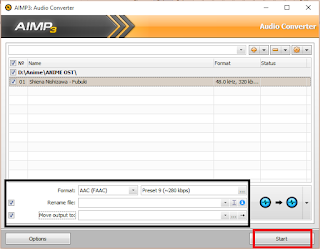
  • Right-click on your audio file that need to converted (block some audio files for multi convert)
click to be full size

  • then select AIMP3 >> Convert to another format
  • then you need to configure the type and quality of audio file that you needed it.
  • click start to start convert it 
  • enjoy XD

I look that you have interested about this software XD don't worry I have posted a post about download AIMP3 for windows 7/8/8.1/10 full version before.

Download AIMP3 windows 32bit and 64bt

How To Change Font On Windows 7/8/8.1

How To Change Font On Windows 7/8/8.1
Did you bored to your windows font? Always use the same font is make you bored. Now let me show to you how to change font on windows 7/8/8.1 easily.

Step by step:
  1. Go to desktop layout
  2. Right-click then click Personalize.
  3. Click menu Window color, And then click Advanced appearance settings..
  4. Then we will looked a new windows. select your font on options  font, Active Title Bar, Icon, Inactive Title Bar, Menu, Message Box, Palette Title, Selected Items, dan ToolTip.
  5. Click OK 


Now your windows font have been changed to your favorite fonts. you can select different font on options  font, Active Title Bar, Icon, Inactive Title Bar, Menu, Message Box, Palette Title, Selected Items, dan ToolTip. This is how to change windows font easily. 

Hope you like this..


Download AIMP3 3.60.1495 full version

Download AIMP3 3.60.1495 full version


Hello all!! Now i will shared one of my favorite music player. AIMP3 this is a music player that have many great features.

Features:
  • Skin
  • Song properties editable
  • Equalizer
  • Playlist
  • Dock at left or right desktop
  • Play all songs on folder
  • Rating
  • Shuffle and Replay
  • Scheduler
  • Visualization
Screenshoot:


Download link available here
Download AIMP3 3.60.1495 full version

Download Windows Movie Maker 6 Full Version for windows 7, 8, 8.1, 10

Download Windows Movie Maker 6 Full Version for windows 7, 8, 8.1, 10
Actually this program is windows XP software, but now its can used for windows 7/8/8.1/10, This application is unlike Movie Maker 2.6 because movie maker 2.6 have too many bug, but Windows Movie Maker 6 is safe from bug and add more effect. This application suppot for PC low specification.

Features:
- Effect
- Support all video format
- Easy split video
- Low RAM usage
- Make a video from multiple pictures
- ETC.

screenshoot:


Link Download Available Here..
Download Windows Movie Maker 6

Download Aegisub 3.2.2 full version latest

Download Aegisub 3.2.2 full version latest
Do you interested to become a subber? or want to know abaout subtitle? I will share to you an application that can used to subtitled all format video, that is Aegisub 3.2.2.
This some feature about latest Aegisub 3.2.2

- Translation Assistant
- Shift Times
- Style Manager
- Dummy Video
- Specialist subtitle format  *.ass
- Can export to format *.srt
- Can read format *.srt , *.ass , *.ssa , *txt, *sub, *.ttxt
- Can take subtitle from video format mastroka ( *.mkv)
and many other.


Screenshot:

you can download this application at here

PlatformInstall Type
Size
                         Windows 32-bit                             Full Install   
19MB
Windows 32-bit    Portable Version    
14MB
Windows 64-bitFull Install
20MB
Windows 64-bitPortable Version
15MB


Change Log on Screen Background with Logon Screen Rotator 4.4 Windows 7/8/8.1 full version

Change Log on Screen Background with Log on Screen Rotator 4.4 Windows 7/8/8.1 full version


Hello world!! Now i will share an application that can change your log on screen background manually.
"Log on Screen Rotator" faster way to change log on background.
Application features:
- Select Picture
- Select multiple pictures
- Random pictures
- Specific picture

How to use?
- Install application
- Run it
- Go to tab images/folder
- Right-click then select your picture

make sure you download this application at here
Log on screen rotator 4.4 windows 7/8/8.1

Stop Windows Update and Store Update On Windows 10 Manually

Stop Windows Update and Store Update On Windows 10 Manually Using Computer Management


have your PCs have installed with windows 10, if haven't you can install windows 10 from windows update or its can be downloaded from here.
FaQ about windows update:
Q: owhh, why?? my internet quota is been lost in a quick time after i use modem?
A: let you check on task manager whats application that make your quota lost.

Q: my windows update and store update always running without my confirmation, how to stop it?
A: its just a simple thing, you know!! follow the step bellow

  1. open windows explorer
  2. right-click on "This PC" 
  3. click manage
  4. click services and aplications
  5. click services
  6. look for "windows update" in the bottom
    computer management

  7. double-click on "windows update" or right-click then click properties
  8. if windows update still running click "stop"
  9. change startup type to "manual" or "disable", i suggest to change into disable
  10. finish

simple? i agree with you, its simple XD
this trick could used to windows 7/8/8.1 too

note: if you want to turn on windows update again, sett start up type to automatic or manual

Thursday, September 12, 2013

Make Your Windows 7/8/8.1/10 Desktop More Beautifull With Xwidget 1.9.3.1022 Full Version

Make Your Windows 7/8/8.1/10 Desktop More Beautifull With Xwidget 1.9.3.1022 Full Version

Xwidget
Hello all did you have a nice day today? Now i will shown to you one of my favorite software XD. "Xwidget" . As the name this software have many widget that will made your desktop look more better. Just using widget from windows is boring you know ._. And in windows 10 there aren't windows gadget, it s look so poor ._. but you can change it better with Xwidget. Some fitures on Xwidget:
- Editing widget
- Create widget
- Download widget
- Widget opacity
- Etc.

This is screenshot my desktop XD


Be interest? Download the aplication here...
Download Xwidget 1.9.3.1022 full version