Showing posts with label PC tutorial. Show all posts

Monday, December 03, 2018

Getting trouble with your Wacom? Try to restarting it without turning off the computer

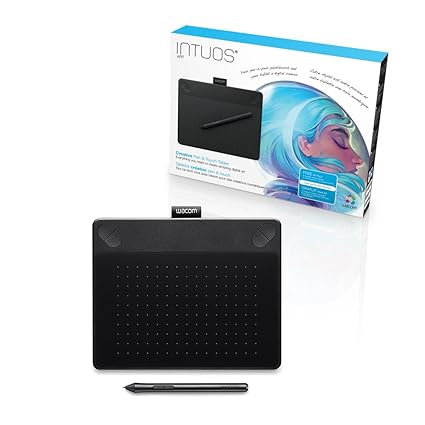
Hasil gambar untuk wacom


Wacom is a tool for drawing something. It commonly used by artist, but some people use it for presentetion or older. Sometimes Wacom tablet become unresponding, can't doing a pressure or other errors. A simplest way to fix is to restarting the PC / Laptop, but it will take a litte longer. Here is a trick for restarting your wacom.

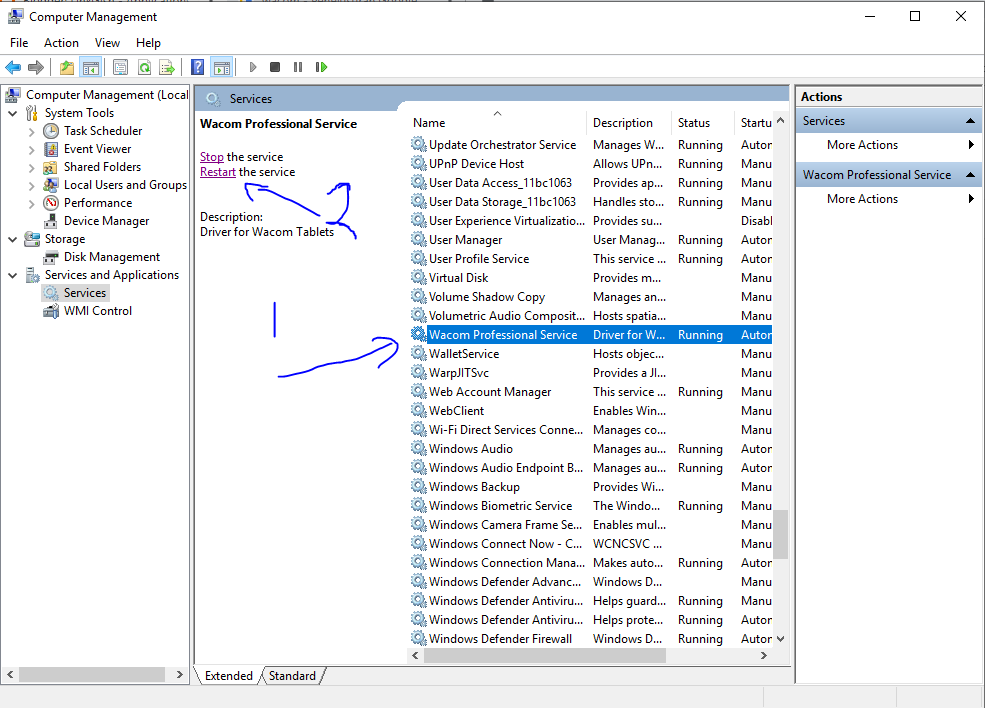
Open Computer Management
Go to Services and Applications - Services
Find Wacom Professional Service
Then click Restart

Done


Friday, November 09, 2018

How to "Manually" clear cache and data in your Android Virtual Device (AVD) using linux (Ubuntu, Kali, etc.)


AVD (Android Virtual Device) is an android device that run in your computer otherwise it is called Android Emulator. In this case we are using AVD from Android Studio. You can download the AVD emulator and SDK from their official website.

AVD commonly used in programming android program. While using VS code to program an android software using Android Studio, React Native, Flutter dart, etc. AVD sometimes begin laggy, slow to run and sometimes stop booting. So clearing the data will boost it faster and fix the problem.

Here is the step to manually clear your AVD data.

Close your AVD first

Open your terminal and run Nautilus or other Explorer Programs

Go to Home -> .android -> avd -> [your avd name].avd

delete some of .img.qcow2

cache.img.qcow2
encryptionkey.img.qcow2
userdata-qemu.img.qcow2


Done, you can boot to your AVD.

Thanks for visiting.

Friday, October 26, 2018

Enable your webcam in android emulator using linux terminal


While using linux,webcam do not activate automatically as a camera in your android emulator. It will give you a random block image while running front camera and back camera. So.. You can avtivate it by using this command.

First go to your android emulator directory, this is mine

cd /android-sdk/tools/

run your emulator using this code

./emulator -camera-front webcam0 -avd AVDNAME

-camera-front-webcam0 = front camera using webcam0
-camera-back-webcam0 = back camera using webcam0

you can change webcam0 to your webcam device id

Done, yo can use your webcam in android emulator

Your Gnome Desktop Icon Missing? Here is the solution to bring it back

Using Gnome desktop mean you should following their updates. And in the lastest update Gnome have deleted their Desktop icon by default. But this is not the end, if you someone who comfort at using desktop icon, you should try this one.

First, Gnome has their control menu named Gnome Tweak. If you already install this tool before you can run it via Application menu then search for tweak.
Or you can install it by..

apt-get install gnome-tweak-tool

Here is the interface


On the menu tab there a tab name Extension. 
For installing Gnome Desktop extension you can download it from


Extraxt and Copy you downloaded file to

~/.local/share/gnome-shell/extension

Just make a  new folder if you do not have extension folder

then open metadata.json file using text editor, and edit this line

"uuid": "desktop-icons@csoriano"

Change desktop-icons@csoriano to your folder name or change your folder name to uuid name

Press F2 or fn+F2 then type r amd enter  to refresh your shell

Then DONE. You can enable the Desktop-Icon extension on your tweak. Thanks for reading

How to run VLC in root user

Hello linux user whereever you are, here is a simple problem with a simple solution for how to run VLC in root user. But i do not prefer to use this step, because if it prohibited to run as root , that should  have some meaning.
Running VLC using root account will give you some risk, so be carefull :)

Here is the problem


"VLC is not supposed to be run as root. Sorry. If you need to use real-time priorities and/or privileged TCP ports you can use vlc-wrapper (make sure it is Set-UID root and cannot be run by non-trusted users first)."

First solution
Copy this syntax (CTRL+C) and then paste to your terminal (CTRL+SHIFT+V)

 sed -i 's/geteuid/getppid/' /usr/bin/vlc

Then enter
You dont need sudo if you run your computer as root

or the second solution

gedit /usr/bin/vlc 

search for geteuid and replace it with getppid 
Save file & Exit.

Then VLC can run as root


VLC media player 3.0.4 Vetinari (revision 3.0.4-0-gf615db6332)
[000055957bfae750] main libvlc: Running vlc with the default interface. Use 'cvlc' to use vlc without interface.
[000055957bfa93a0] main playlist: playlist is empty
QObject::~QObject: Timers cannot be stopped from another thread


There were some solution for running VLC as root, Do on your own risk.

Monday, July 02, 2018

How to inactive instagram account via Handphone and PC

Hello everyone here is the step to inactive your instagram account

Via PC / laptop

1. Login to your account

2. Go to profile


 3. Click edit profile


4. Done 


And then here are steps to inactive instagram account Via Handphone / Smartphone

1. Open Chrome

2. Tap on [. . .] at top right

3. Check Desktop Site

4. Follow step same as Via Laptop

5. Done

Monday, May 14, 2018

How to disable network credential on sharing windows 10 or older

Sharing is one of some important things to do. On my older post i have talk about sharing via Wireless LAN (WLAN). And now i will give solution about the trouble.

Hasil gambar untuk credential sharing

Do you even see this dialog box when sharing files? This will be disturbing and make.nonsense while clicking computer in Network
So how to remove this dialog box? i will told you some ways.

First Trick
Local security policy

First.. open control anel and then go to System and Security - Administrative tools


Open Local Security Policy 


Go to local policies - Security options and click on  Accounts : limit local account use of blank passwords to console login only


Set it to disable - Aplly and OK


DONE

and then for 
Second trick
Using computer management

Open Computer management by right clicking on windows icon - click 


Go to services and application - click  services
Look for credential manager and double click on it


Set the status type to disable and then OK


DONE

Thats all two step how to disable network credential dialog box on sharing windows 10 or older.(windows 7/8/8.1). If you still get some troubles just comment below, and i will give you some advise 

Thanks for visiting...

Sunday, May 13, 2018

How to transfer files using Wireless LAN (WLAN / hosted network)


How to transfer files using Wireless LAN (WLAN / hosted network)

Communicate is a process that transfer information from source or server to receiver across a media. This media called transmission media. There are two kinds of transmission media base of the material used. these are wire and wireless.

In a wire connection such as RJ-45, using this cable you have to connecting the sender and receiver using it. Range of transmission are will be as long as the wire, and also more wire needed to connect on multiple receiver or source. This is the primitive one but in some case will be effective one. And now we are commonly use wireless connection which have more efficiency and surely less cost. Using wireless connection will improve the range of transmission area based on gain level of source antenna, and receiver antenna. And other advantage also for some receivers just need to add more antenna and connect to same network.

Sharing is a type of communication, because it sending some datas and informations to receiver. In this tutorial i will talk about how to make a windows files sharing and transfer using a Wireless LAN.(WLAN).

You need to prepare a computer that support hosted network. Because we have to create an Ad Hoc connection first.

To check your hosted network is available yet, just type this command on cmd
netsh wlan show driver
and then see on that red square.


For how to create ad hoc or wireless lan connection click on this link  or you can use a simple apps to create hosted network

And next.. set up our network discovery.

Go to Control Panel - Network and Internet - Network and sharing center - and click on change advance sharing settings

Set up in your computer as the following image (windows 10 other windows version can be a little different but exactly same)


Set up this setting on both receiver and sender computer, so it can be connected each other.

Next we should set the shared folder at sender computer.
Just right click on a folder - properties and ...

Click share


 click share


 just wait some minutes, depend on your folder size


DONE


see the folder now be shared


And now, from the receiver (should connect in same network with sender) go to windows explorer (press WIN + E) and click on network.

You will see your computer name and name of sender computer. Just click on sender computer and click on the folder. And last you are able to copy/cut and paste.

END-joy ^^

Thanks for visiting, write some comment and share to support us. Thanks...

Saturday, March 10, 2018

How to find missing handphone?


How to find missing handphone? - Each person nowday in teen and older age usually have handphone, oh no i mean smartphone for now. Because the era have changed our phone now have smart ability Some years ago, about 4 years i think, phone just used to calling and massaging but now, we can easily connected to internet and playing online game. With more features phone also have their own security. In this case, "ability to find his self".

It a great disaster if you lost your phone in a improtant time. Or datas in your phone are very important to you. So, with this step we can find your missing phone.

Okay this is the step by step..
1. Make sure your missing phone have internet and connected to google account (This is the most important thing if not just go to the last point in this post)
2. Use other phone or Laptop and try searching in google "Where is my phone"
or use this link : https://myaccount.google.com/intro/find-your-phone

Gambar terkait

3. You should login to your missing phone google account, and then a map will be shown. In thats map there are your phone and its last active.
4. Just go to that place, if your phone in active condition the potition is in real time.
caution: Don't go to that place alone, who took your phone is a criminal, so invite frineds asa much as you can and dont just go for one way, take multi way and find someone who look as the thief.

If you using android phone to detect missing phone location, here is an app to do that.
Hope your phone can be found soon, thanks for reading my post. Don not use this post to be a criminal.

And last , if your phone have inactive connection, just go the the police station, police can detect your phone using their ability even your phone don't connected to internet.


Thursday, March 08, 2018

9 Trick to Fix Computer Can Not Connect to Internet or Wi-Fi

Gambar terkait


9 Trick to Fix Computer Can Not Connect to Internet or Wi-Fi - Who dont need internet on their life? on their work? in their study? Internet is the most needed thing in nowday. Without internet some activity will getting slow. For example, who still use dictionary book till now? I am never used it after knowing about google translate, just typing and the translation will come in short time. And also google translate can be used to translate some words in one time. stoppp... I am not talk about google translate, now i talk about benefit of internet in nowday.

Hasil gambar untuk wifi logo


Whe you need internet, it will be a disaster if you can not connect to internet, yeahh greattt disasterrrr...So why this happen? Oh sh*t. Please connect. Oh why. Why this time. Oh my god.

hahaha.. we are same if you ever use that sentences before. So in this post you need internet to read it (of course). But not at that point, i will tell you about how to fixing computer can not connect to internet and their reason.


And then these are the tricks:

1. This is stupid case, you forgot to make your wireless adapter ON. Just use key FN+(keyboard with a wireless icon). And then the problem will be fixed. '-') so ez for now.. lol.

Hasil gambar untuk fn wireless

2. For you that using an external adapter to connect internet (modem or tp link) please look carefully, is that indicator lamp have light? If yes you need more step to go. But if not, it will be the problem, i think all of the external adapter have lamp, so if the lamp not broken it will show the light. But if not, check on the USB cable.

Hasil gambar untuk wireless adaptor

3. the lamp have their light but cannot see the signal? Some of the adapter need a driver installed. Install the driver from CD if you get it in the box of package. Or you can download it freely by searching it on search engine. After installing the driver you should see the signal.

4. For you who can use in advance of SSH (Secure Shell) or proxy, dont forget to turn it off while using a public network. Some public network blocked your SSH and procy.


5. In some cases, there a Wi-Fi signal that cant be connected in. It's because that was for a router not for your laptop or phone.

6. Please insert your WiFi password carefully, it is in case sensitive so uppercase and lowercase will not same.

7. For windows 8 and higher, check on your airplane setting. Do not turn it on while using WiFI or network.

airplane mode kondisi off

8. For some laptops, while the indicator light showing a red lamp it mean the driver not installed or some trouble came from the hardware.

9. When you connect to a public SSO and cant login, just chect it. Is it get the ip address? The indicator will shown a yellow "!" while not get it. In this case the problem caused from the router, it can be ran out of packet data or some cable not in a perfect place. Just check the router.

FIX

These all i can share to you for now. Hope this article will help you soon, don not forget to like and share this post. See you again on next post.. bye bye

10 Simple Tips and Trick to Keep Laptop or Notebook Battery on It Best Performance


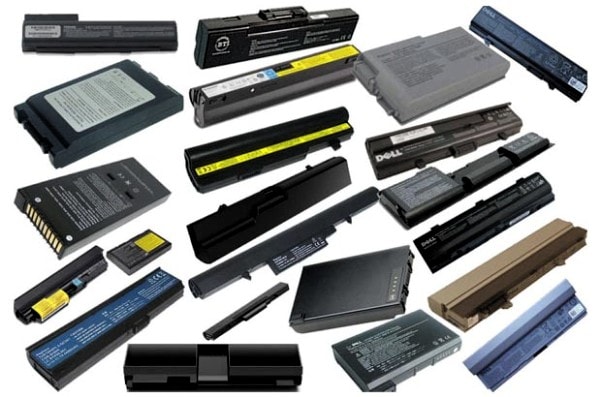
Hasil gambar untuk laptop battery


10 Simple Tips and Trick to Keep Laptop or Notebook Battery on It Best Performance - Hello guys in this post I will show you some tricks to make laptop battery in long life. Why need a long life battery? Because laptop or notebook is not computer. You bought laptop because you need to work outside. If you always work in home with electricity supply so buy COMPUTER, zz... 
Slow.. sloww.. but in this post I will talk about Laptop. 

New battery laptop can be used up to 12 hours in watching movie, but it will be drained till 1 minute only or in some case laptop will be auto shut down when the supply cable plugged out. No one life eternally but in this case i will give some trick to  make it life longer. 


I have test this method with my laptop, and the results i can use it outside for 3 years in best performance (use for watching, gaming, and design) but it just drop in 6 month because i break the rule. lol.. So this trick trusted by me ;)

Ok just start now...
1. when buy a new laptop, it will be not in fully charge. Usually on 30-50% battery. Just DON'T use it, first at all fully recharge the battery till perfectfully full, see the indicator light. It will take 4-8 hours charge.

2. While using laptop dont push it to the lowest battery power, don't let it turn off automatically. But charge it when the indicator had 5-15%. When laptop automatically shut down it will break some hardware function and make the battery in worst power. sad.

3. Dont let the charging continue when it in 100% indicator, it will break the battery power. And this is the worst thing you should know, this will make your battery have short life quickly.

4. For save power, turn off network while not used to.

5. Setting your desktop contrast noot too bright but either too dark, make it in a comfortable light. Use full bright in dark place will give minor cause to your eye and the battery life will decreased.
6. Using headset while hearing music or movie will decrease battery use better than using speaker.

7. For safety charge use your original charging adapter, its specially designed for your laptop not to other. 

8. This will be the harder one. Only charge your laptop or notebook in power off mode, it will make the current in stable without any use. Just imagine what will happen if you fill a bottle and it have hole, the charge will take more long time and the current will unstable.

9. It is better to not using a multi stem wire cable, In some cases the current will not unstable, but in other case it will not take any effect.

10. It is better to take out the battery while using direct charging using power supply. And then use the battery while the power supply too far.

Thanks for reading, hope this tips and trick will help you soon. See my other tricks on:


Tuesday, February 27, 2018

Something about CPU (Central Processing Unit)

For you who already using computer for a long time ago, CPU not a special word to hear. If you are a new comer you are lucky to read this thread. But even you already hear the name, someone still don;t understand about meaning and purose of CPU it self. We know CPU is an important thing, but why? Now i will describe it in a moment.

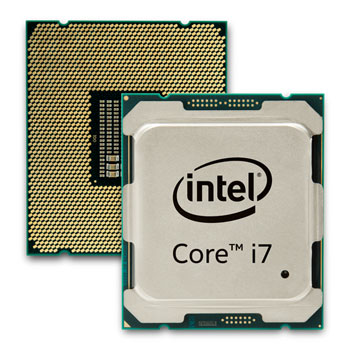
Hasil gambar untuk cpu

Meaning of CPU (Central Processing Unit)

As we know, from the name this a central something, the purpose is for processing and and it is made from a complex thing named unit. So CPU is hardware in computer to execute some command and process data from software.
Without a good quality of CPU will cause laptop or computer not to work well. How processor (CPU) works? Data from input will entering to processor and then it will sotored for a while in RAM (Random Access Memory) and then the instruction will be saved in Program Storage or can be some output (sound, light, etc).
So knowing about the quality of CPU is important to get optimal work.

Hasil gambar untuk cpu

Purpose of CPU 

Back to the basic question, "what for?". Because if it just a useless thing this is not important anymore. From the meaning we know something about processor:

1.  Controlling the input and output system
2. Take the data from process result to the storage
3. Take any instruction from the main storage
4. Take data from the storage and then do the data process
5. If there any arithmetic problem, CPU will send the instruction to ALU


And then we know about something now, and the most important thing after knowing the meaning and purpose is you can think to use the processor optimally.

These are somethings about CPU that I can share to you now, see you n the next post for more information. Thanks for visit ^^

Wednesday, February 21, 2018

Simple way to Optimizing Your RAM (Random Access Memory)

Simple way to Optimizing Your RAM (Random Access Memory)

Hasil gambar untuk RAM

Now let we start with what is RAM? 

Random-access memory (RAM /ræm/) is a form of computer data storage that stores data and machine code currently being used. A random-access memory device allows data items to be read or written in almost the same amount of time irrespective of the physical location of data inside the memory. In contrast, with other direct-access data storage media such as hard disks, CD-RWs, DVD-RWs and the older magnetic tapes and drum memory, the time required to read and write data items varies significantly depending on their physical locations on the recording medium, due to mechanical limitations such as media rotation speeds and arm movement.

Source : Wiki

Sometimes we feel that our computer is getting slow response, or always show "Not Responding" and other. Thats can be cause by RAM not in a good performance. In this post i will show you same tricks to get a better RAM performance.

First Trick (1) Using task manager to control active programs

With task manager we can control all of the process in the computer, front task and background task will shown here. We also can see the usage statistic of CPU and RAM, how many used and how many its free left.


How to open Task Manager?
1. You can open it by searching "Task manager" after clicking windows key
2. Right click on taskbar and then click on task manager


After task manager opened, just go to the performance to see your RAM usage..

And then go to details to get more details about your opened program, while you see an abnormal program just right click - end process. This will decrease your RAM usage.


Second Trick (2) - Disable sartup app or programs

From task manager you can end process some program, but that same program will be opened again soon. So now you must disable that from startup program. Because, after booting your OS need some time to fit and when some program force to open that will cause problem.. big problemm.. i hate startup apps..

For windows 8 and up your startup program available in taskbar, but for windows 7 and less you can open your setting here:

Win + R (run) - type msconfig - enter - tab startup - uncheck useless program - apply - restart your pc


Third tricks (3) - Using third party application

Do you type human who dont want to know about complex step by step, this trick will help you much. Just download a third party program as CCleaner

gallery/ccleaner

This app can be multi function apps, it can be an antivirus, clearing trash, and optimizing your computer in one click. Some detail about CCleaner will updated soon in another post.

Thanks for reading my simple tutorial about optimizing RAM in computer. This tutorial not to Over Clocking your RAM. So if you still getting worse after doing this trick, its mean you need add some RAM or upgrade your RAM.


Download Firewall App Blocker FAB 1.6 Latest version

Gambar terkait

Firewall App Blocker FAB 1.6 Latest version is program to customize firewall protection on same program. Why using firewall? Some program need to blocked from their original server to running, so this FAB help you to do it in a simple sett.

Gambar terkait

Whats new: 

FIXED – Add a folder feature doesn’t support shortcuts
FIXED – If the firewall is closed, added icons seems to be blocked
FIXED – In whitelist mode MS Edge continues to establish normal connections to the Internet (Need extra step)
FIXED – Fab cannot remove old versions Context Menu registry entries properly

Info : Supported Operating Systems: Windows 10 , Windows 8.1 , Windows 8 , Windows 7 , Windows Vista – (both x86 and x64)

How to install?

- Open the .exe installation file
- Wait until the installation process finish
- Enjoy

Download Firewall App Blocker FAB 1.6 Latest version here
GoogleDrive (1 mb)

Download Application Key Tweak - Easy to customize your keyboard


Gambar terkait

Hasil gambar untuk key tweak logo

Download Application Key Tweak - Easy to customize your keyboard

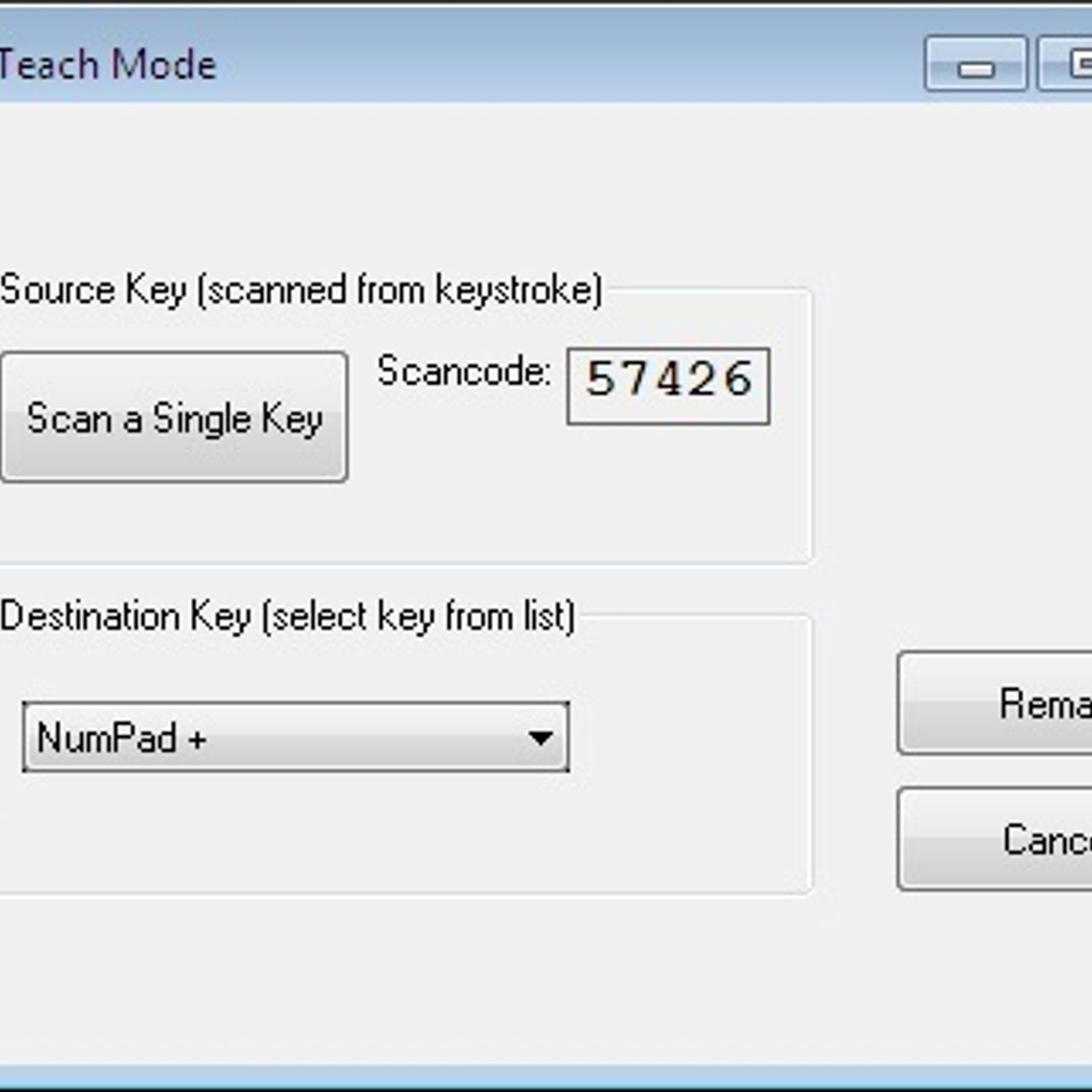
This is my original story, one day I want to play a mmorpg game with my beloved laptop. But something happened, i cant press my ESC keyboard, but why?? IIt almost okay yesterday. So in my game ESC was very important thing, so i decide to stop play and fix this issue. I cant repair the hardware so i find a faster way, that is customize my keyboard keys.

And then with this software i change my ESC to HOME and HOME to ESC, and it works perfectly. haha.. so simple i think. Do you have some problem? Just use this simpleware.


These are some Features:

  • Simple interface
  • User friendly, don't need a special instruction
  • Can detecting a key by pressing it
  • Can manually select a key by finding it in drop down list
  • Enable / Disable annoying keys
  • Remove all remapping or set to default keyboard 
  • Display what exactly written in "Scancode Map"


Download Tweakware Full Version Free Here
Google Drive

Download Odin 3.12 Latest version for your windows 7/8/8.1/10 free

Download Odin 3.12 Latest version for your windows 7/8/8.1/10 free

Odin is an application that help you to flashing a firmware on your android mobile phone. Especialy for samsung user, this software will be usefull. Now I will share to you about Odin and his latest version.


Odin features:

- Flashing your stock firmware (original)
- Flashing a custom OS to your samsung phone
- Flashing recovery file to fix some problem
- Rooting your smartphone, usually need md5/.tar files
- Flashing kernel system

Caution!
- Odin dont need a special step to flashing phone, but when you make a mistake it will be a permanent error or something else.
- Bedore flashing or rooting, make sure you have all of your backup files to avoid missing file
- Flashing a custom OS will remove your guarantee. This is ossur to all smartphone and tablet.
- Odin license program is from Samsung, but i can share this program because this is freeware.

Download link for Odin 3.12